File Browser
OOD provides an web-based file browser for your files on Cheaha. In order to
access it, in the toolbar click Files > <dir>, where <dir> is one of the
choices of your $USER_HOME, $USER_SCRATCH, or USER_DATA directories.
This will open up the following page:
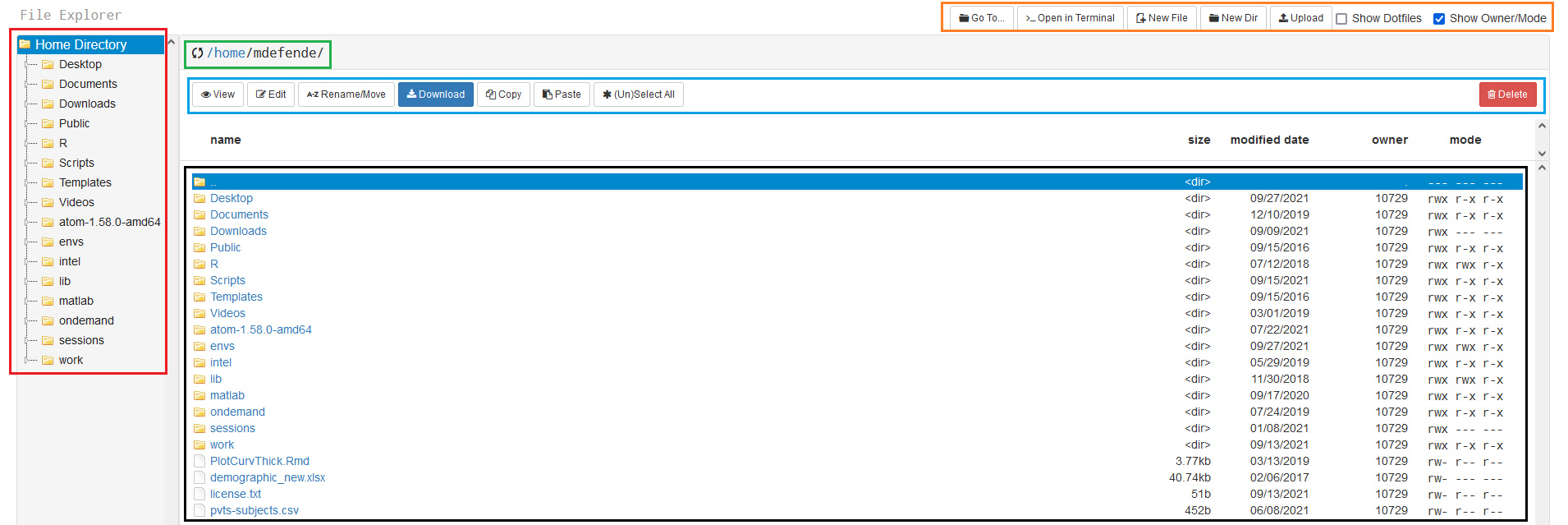
This page has a few parts to it:
Home directory (red): A link to your
$USER_HOMEdirectory and all of its subdirectories for easier navigation. This is always$USER_HOMEeven if you chose$USER_DATAor$USER_SCRATCHto open.Working directory (green): The absolute path for the current directory you are in along with hyperlinks to the parent directories for easier navigation.
File List (black): A list of all file and folders in the working directory along with select information. Hidden files and file permissions can be shown using the radio button in Command Bar at the top right (orange).
File Commands (blue): A list of commands to perform to a file or directory.
Note
Be careful deleting files here. They will be gone forever!
User Commands (orange): A list of commands for navigating in the file browser, file or folder creation, and opening a terminal.
User Commands
Uploading Data
Data can be uploaded from your local machine using this interface. Use the
Upload button in the list of User Commands at the top right to select files
from your local browser. Additionally, you can drag and drop files from your
machine into the File List window as well.
This should be limited to small files only. For large files or datasets, please use Globus instead.
Opening a Terminal
You can also open a bash terminal in the current directory using the >_Open in
Terminal command. This should only be used for small tasks when fine-grain
user control is necessary because the terminal is running on the login node. For
compute-intensive tasks, either request an interactive session in the terminal
or request an HPC Desktop session through the Interactive Apps and use the
terminal there.